Signals
 Our Data
 RevOps
 Human Verification
 Comprehensive Support
 Real Mobile Numbers
 Research on Demand
 Guided Transitions
 Contact Data
 Intent Data
 Company Technographics
 Company Firmographics
 Sales
Sales Marketing
 RevOps
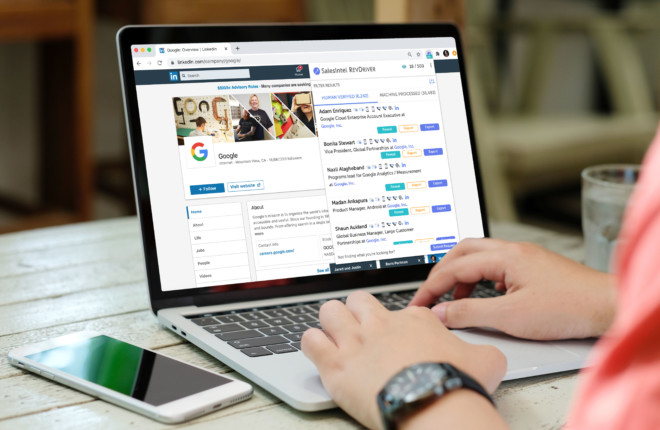
LinkedIn is the world’s largest B2B database, but getting that data OUT of the platform is intentionally difficult.
While LinkedIn is a goldmine for networking, its native “Export” feature is hidden deep in the settings and, more importantly, often strips out the valuable contact details (emails/phone numbers) you actually need. In this guide, we’ll show you the official way to download your connections and a smarter way to export actionable contact data for any prospect.
So the best way to use LinkedIn is not just making connections, but leveraging those connections to advance business prospects. Be it salespeople, marketers, or recruiters, LinkedIn is the holy grail for all B2B purposes.
In this guide, you’ll learn:
- The Value of LinkedIn Contacts
- Navigating LinkedIn Contacts
- Why You Should Export LinkedIn Contacts
- How to Export Your LinkedIn Contacts
- How to Export ANY LinkedIn Contact
The Value of LinkedIn Contacts
When LinkedIn was first introduced, most execs thought the idea of exposing your little black book was career suicide. After all, business contacts are supposed to be fiercely guarded and not shared openly. While at the time, they missed the larger picture (a globally connected business community), they did accurately recognize its core value: contacts.
Just so you know, the value of social media platforms like Facebook, Instagram, or YouTube is derived from the content their users generate. Be it selfies, cat memes, or educational videos, the content that users upload attracts new users and generate engagement. You log on to Instagram or YouTube not to contact publishers, or even your friends, but to consume their content and see their latest posts.
The same can’t be said for LinkedIn. While the content does play a modest role, its true value resides in the users themselves. You go to LinkedIn to find people, not content.
The fact that you can find almost every executive and decision-maker of significance on LinkedIn makes it the go-to platform for all kinds of business purposes. From talent hunting to sales prospecting, LinkedIn has what recruiters and marketers need: the right people.
A Facebook account on average has 330 friends compared to 930 connections of a LinkedIn account. It isn’t uncommon to find company pages on LinkedIn that have millions or even tens of millions of followers. Couple that with its smaller user base and this clearly indicates that LinkedIn as a platform is much more densely connected.
This has both an upside and a downside. On the upside, everyone you might want to contact is always just a few connections away, making it much easier to find prospects on LinkedIn. On the downside, you can’t contact them as easily as you would on other platforms. You can only message your own connections directly and there is InMail for people with common connections.
Beyond that, there is no third option to contact people you just found on LinkedIn. This limitation can be frustrating, particularly for salespeople and recruiters. They can visit the LinkedIn profile of a person who they believe can help close a deal or be the ideal candidate for a job – but they can’t contact them!
The Benefits of Downloading LinkedIn Connections
LinkedIn is an extraordinary place to cultivate connections – you’ve likely spent hours perfecting your profile and expanding your network. Tapping into those connections provides the perfect starting point for prospecting and nurturing potential leads.
While having connections online is great, there are limitations. LinkedIn excels at sourcing contacts, but it isn’t easy to communicate with them. Having contacts within LinkedIn doesn’t allow you to conduct campaigns and only chat through inMail. It’s easy to lose touch. Also, if a connection’s profile becomes corrupted or deleted, there goes your line of contact! Thankfully, there’s an easy fix – download and export your contacts, right from your browser.
Exporting connections and integrating them into your existing sales/marketing engine (like your CRM) allows you to reap the benefits of identifying trends, improve your marketing targeting, and establish automated campaigns. By exporting, you can leverage these connections and begin to take action.
Why You Should Export LinkedIn Contacts
While LinkedIn is the best place to find appropriate prospects, it isn’t very effective for actually contacting them. For example, a salesperson might shortlist 50 contacts from 10 companies they wish to target. They can visit their LinkedIn profile but what next? Drop InMail messages and wait for their response?
Well, that isn’t going to work for two reasons. First, the response rate is very low. Even if you InMail 50 prospects, you will hear back from no more than 5-6 people. Also, there is a limit on the number of InMail messages you can send. If your response rate continues to be low, LinkedIn might even flag your account as spam.
Second, even the prospects who respond aren’t integrated into the regular sales and marketing engine. That means you can’t send automated messages or track engagement, making the lead nurturing virtually impossible via InMail.
You need all your contacts to be fed into the core marketing/recruitment engine. So once you shortlist your prospects, the ideal approach would be to first export those contacts into your CRM and then start prospecting.
But this again has two challenges depending on which contacts you want.
If they are already in your network, exporting contacts is a fairly easy process. But this begs the question: if you already know them, why go through all the trouble? Just pick up a phone and call them!
If they are not in your network (i.e. you don’t know them) you probably don’t even have their contact details. So there isn’t anything to export in the first place!
For example, HR managers looking to fill a specific profile find candidates on LinkedIn (generally prospecting employees working at companies in a similar industry or vertical). Now if HR managers are already connected with these candidates, they can message or InMail them or even export their contacts. But what if they are not connected? How can they be contacted?
At this point, two things are absolutely clear:
- LinkedIn is, by far, the most reliable and abundant source of business contacts.
- It isn’t very effective for actually contacting them.
This is why if you export the LinkedIn contacts to your CRM or other marketing engines, you can reap all the benefits without struggling with the related downsides.
How to Export Your LinkedIn Contacts
As mentioned earlier, exporting contacts you already have in your connections is a fairly simple process. Just follow these steps:
How to Export Your 1st-Degree Connections (The Native Way)
- Click the Me icon at the top of your LinkedIn homepage.
- Select Settings & Privacy from the dropdown.
- Click on the Data privacy tab on the left menu.
- Under “How LinkedIn uses your data,” click Get a copy of your data.
- Select “Connections” (instead of downloading the full archive) to save time.
- Click Request archive. You will receive an email with the CSV download link shortly.
Warning: LinkedIn’s native export rarely includes email addresses anymore due to user privacy settings. You will likely get a list of names and profile URLs, but no contact info. To get actual emails and phone numbers, you need a different method (see below).
How to Export ANY LinkedIn Contact
The Problem with Native Exports: Where are the Emails? If you followed the steps above, you probably noticed a glaring issue: the “Email Address” column is mostly empty. This is because LinkedIn now allows users to hide their email from exports by default.
The Solution: RevDriver (Export WITH Contact Data) This is where the free SalesIntel RevDriver extension solves the problem. It allows you to reveal human-verified work emails and mobile numbers for any profile even those you aren’t connected to—and export them directly to your CRM.
Download the SalesIntel Chrome Extension
The first step is to download SalesIntel’s Chrome extension from the Chrome Store and create an account. That’s pretty much it. You are good to go. And yes, it’s 100% free to reveal contacts.

Start Prospecting
After that, visit any LinkedIn profile you are interested in and click the SalesIntel icon in the toolbar. SalesIntel will list all of the available contacts associated with the page which can then be filtered to get the precise information you need. Watch this short video to learn how it works:
RevDriver+ Use Case: How to Prospect on Regular LinkedIn from SalesIntel on Vimeo.
It is worth mentioning that SalesIntel only allows human-verified contact data to be exported to CRMs because we value the accuracy of your database. With over 85 million contacts in the SalesIntel database, you are virtually guaranteed to find what you are looking for.
There is also SalesIntel’s Research on Demand service, where you can request contact details of anyone who is not already verified and we will get it to you in a few hours.

Go Beyond LinkedIn
As a bonus, you can also use the extension on any website to find and export contact details of people in that organization. For example, if you visit Salesforce.com and click the extension icon:

You will see we have 2,138 human-verified and 15,957 machine-processed contacts for the company. Just click “export” on any of those contacts and they will be sent directly to your CRM.
Frequently Asked Questions
Q. 1 Can I export all my LinkedIn contacts at once?
Yes, you can export all your LinkedIn connections at once. However, note that LinkedIn limits the number of exported contacts to not more than 10,000 contacts per day, and 1000 views per day.
Q. 2 What format will my LinkedIn contacts be exported in?
LinkedIn provides the option to export your contacts in a CSV file format, which can be opened in spreadsheet applications like Microsoft Excel or Google Sheets.
Q. 3 What information about my contacts will be included in the export?
The export will include the following information for each of your contacts: name, email address, company, title, and any notes you have added about the contact.
Q. 4 Can I import my exported LinkedIn contacts into a CRM or other software?
Yes, you can import your exported LinkedIn contacts into many CRM and marketing automation software platforms. However, note that the process for importing may vary depending on the software you are using.
Q. 5 Is it possible to export contacts from LinkedIn?
Yes, LinkedIn allows users to export their contacts. To do so, log in to your account, go to “My Network” and click on “Connections”. From there, click on the ellipsis and choose “Export contacts”. Select the file format and confirm your identity, and LinkedIn will send you an email with a link to download your contact data.
Q. 6 How do I export my LinkedIn contacts to a CSV file?
To export LinkedIn contacts to a CSV file, log in to your account and go to “My Network” > “Connections”. Click the ellipsis icon and select “Export contacts”. Choose the CSV file format, verify your identity, and LinkedIn will email you a link to download your contacts in a CSV file.
Q. 7 How do I export my LinkedIn contacts to Outlook?
To export LinkedIn contacts to Outlook, first export your LinkedIn connections as a CSV file. Then, open Outlook and click “File” > “Open & Export” > “Import/Export”. Select “Import from another program or file”, choose the CSV file. Note: Since native LinkedIn exports often lack email addresses, importing this file may create contacts in Outlook that only have names but no way to message them. We recommend using a tool like SalesIntel to enrich the data with emails before importing to Outlook.
Q. 8 Can you export from LinkedIn to Excel?
Yes, you can export LinkedIn contacts to Excel. To do so, log in to your account, go to “My Network” and click on “Connections”. From there, click on the ellipsis and choose “Export contacts”. Select the Excel file format, verify your identity, and LinkedIn will email you a link to download your contacts in an Excel file.
Q. 9 What is LinkedIn extractor?
A LinkedIn extractor is a tool used to extract data from LinkedIn profiles. This data can include information such as names, job titles, email addresses, and more. LinkedIn extractors are often used for marketing or recruitment purposes, but it is important to use them ethically and in compliance with LinkedIn’s terms of service.
Q. 10 How to export followers from LinkedIn company page
It is not possible to export followers from a LinkedIn company page. LinkedIn only allows exporting of personal connections. You can, however, view your company page followers by clicking on “Admin tools” and selecting “Followers”. From there, you can see a list of your followers and their information.
To export contacts from LinkedIn Sales Navigator, click on “Sales Navigator” in the top menu, and then click on “Leads” or “Accounts” depending on the type of contacts you want to export. Select the leads or accounts you want to export, and click on the “Export” button. Choose the file format and verify your identity to start the download of your selected contacts.
Q. 12 How to transfer LinkedIn contacts to another account
Unfortunately, LinkedIn does not provide a direct way to transfer contacts from one account to another. However, you can export your contacts as a CSV file from one account and import them into another account. To do so, export your contacts from the first account, and then import them into the second account using the “Add Connections” feature.
Q. 13 How to get contacts from LinkedIn
To get contacts from LinkedIn, you can go to “My Network” and click on “Connections” to see a list of your connections. From there, you can manually record the information of each contact. Alternatively, you can export your contacts as a CSV file by clicking on the ellipsis and selecting “Export contacts”, then choose the file format and verify your identity to start the download of your contacts data.
Closing Remarks
When it comes to business contacts, LinkedIn is a goldmine with almost endless supplies. And just as with mining gold, you need specific tools for extracting LinkedIn contacts. Tools that are simple to use, efficient and justify the ROI.
The SalesIntel Chrome Extension meets all of these needs and more. So what are you waiting for?